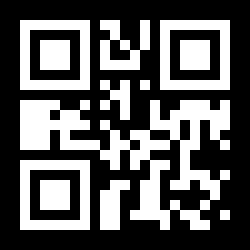
How to Make a QR Code for a Zoom Meeting
To make a QR code for a Zoom meeting, copy the meeting's invite link in Zoom, paste it into the generator above, and download the code. Put it on a slide, a flyer, or a room sign. A scan opens the meeting in the Zoom app, or in the browser if the app isn't installed.
- Copy the invite link. In the Zoom app, open the meeting under Meetings and choose Copy Invite Link, or copy the join link from your invitation email.
- Check the passcode is in it.
A link with
?pwd=on the end lets people join without typing the passcode. Without it, they'll be asked for one. - Paste it into the generator and download. PNG for slides and emails, SVG for printed posters.
- Test it. Scan the code with a phone that isn't signed in to your Zoom account and make sure it reaches the waiting room or the meeting.
QR Code for a Microsoft Teams Meeting
Open the meeting in Outlook or Teams, right-click Join the meeting now, and copy the link. Paste it into the generator. People who scan it can join in the Teams app or in a browser, depending on how your organization has set up guest access.
QR Code for a Google Meet
Copy the meet.google.com/abc-defg-hij link from the Google Calendar event
or from Meet itself, and paste it into the generator. On a phone, the scan opens the
Meet app or the browser.
Where Meeting QR Codes Help
Hybrid Events
Put the code on the welcome slide and the printed agenda, so remote attendees and people in the room can join. More for events.
Office Hours & Classes
A sign on the office door or the course outline opens your virtual office hours. See QR codes for education.
Meeting Room Signs
A code by the screen in each room joins that room's standing meeting from a phone.
Webinar Promotion
Flyers, posters, and direct mail that open the webinar or its sign-up page.
Printed Invitations
Community meetings, AGMs, and family calls, for people who'd rather scan than type.
Support Sessions
A code on a help-desk card opens a drop-in support room.
Keep Meeting QR Codes Safe
Anyone who scans the code can try to join, just as anyone with the link can. For meetings that aren't public, keep the waiting room or lobby on, don't post the code somewhere strangers will see it, and never put a code for a private meeting on social media.
Static or Dynamic Meeting QR Code?
A static code is free forever and fine for one meeting, a webinar, or a recurring meeting whose link never changes.
An editable dynamic QR code (requires a plan) is better for a sign that stays up while the meeting changes: weekly sessions with a new link each time, or moving from Zoom to Teams. Update the link in your dashboard, and every printed copy follows.