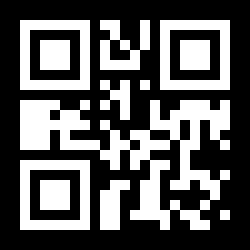
How to Get a QR Code for Google Reviews
To make a Google review QR code, copy the review link from your Google Business Profile, paste it into the generator above, and download the code. Customers scan it with their phone camera and the "write a review" form for your business opens. There's no app to install and no business name to search for.
- Copy your review link.
Signed in to the Google account that manages your business, search Google for
your business name and click Ask for reviews (or Get more
reviews). Copy the link. It starts with
g.page. - Paste it into the generator. The code previews instantly and switches to the Google review look on its own. Change the colours or add your logo if you'd rather match your brand.
- Add a caption. A frame that says "Review us on Google" tells people what the code is for before they scan. See the custom QR code generator for frames and logos.
- Download, print, and test. PNG is fine for a printer at home; use SVG for a print shop, sticker, or acrylic stand. Scan the print on an iPhone and an Android phone before you put it out.
Where to Put a Google Review QR Code
Counter Stands & Table Tents
A Google review QR code stand by the till or on each table catches people at the moment they're happiest: right after they pay.
Receipts & Invoices
Print the code at the bottom of receipts, invoices, and estimates. Trades and service businesses can add it to the job-complete sheet.
Packaging & Takeout Bags
A sticker on the bag or box reaches customers at home, when they've actually tried what they bought.
Business Cards
The back of a business card is a natural spot for a review code, especially for realtors, contractors, and stylists.
Vehicles & Job Sites
On the van door or a yard sign, next to your phone number. See more for contractors.
Email Signatures & Follow-ups
The same code works on a screen. Add it to the "thanks for your visit" email so people on a laptop can scan with their phone.
Get More Google Reviews Without Breaking Google's Rules
A review QR code makes asking easy. A few rules keep the reviews you get from being removed:
- Ask everyone. Google doesn't allow asking only the customers you think will leave five stars.
- Offer nothing in return. Discounts, freebies, or entries in a draw for a review are not allowed.
- Ask in person. "If you have a minute, we'd love a review" next to the code works better than a sign on its own.
- Reply to reviews. Answering both good and bad reviews shows new customers that someone reads them.
Yelp QR Code
Yelp works a little differently. Its guidelines ask businesses not to request reviews,
so a Yelp QR code should open your Yelp business page with a caption
like "Find us on Yelp", not "Review us". Copy your page link (it looks like
yelp.ca/biz/your-business), paste it into the generator, and it switches to
the Yelp look automatically.
Want one code for Google, Yelp, and your Facebook reviews together? A QR code with multiple links opens a simple page with a button for each.
Static or Dynamic Review QR Code?
A static Google review QR code is free forever and never expires. For one location with one review link, it's all you need.
An editable dynamic QR code (requires a plan) helps when you want to switch the printed code to another review site later, or when you want to count scans per stand, receipt, or vehicle. Google tells you how many reviews arrived; scan counts tell you which spot got people to try.
Need directions or your full Business Profile instead of the review form? Use a Google Maps QR code.