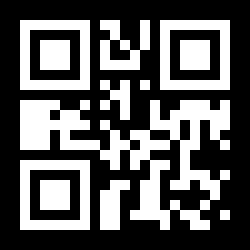
How to Make an Email QR Code
To make an email QR code on EZQR, enter the recipient address plus an optional subject and message, then download the generated code as PNG, JPG, or SVG. When someone scans it, their email app opens with those details already filled in - they add anything they like and press send. Any QR code generator for email works this way, whatever you call it - QR code email generator, QR code to email, email to QR code, email address QR code - it's a mailto: link in a code. The details are encoded directly into the QR pattern, so the code needs no service behind it and never expires.
Ways to Use an Email QR Code
Product Enquiries
Pre-fill a subject so incoming questions land in the right inbox, already labelled.
Feedback & Support
Put a code on packaging or a receipt so customers can email you in one scan.
Job & Rental Listings
Let applicants email about a role or unit with the reference already in the subject.
Business Cards
A scan opens a fresh email to you - no copying your address by hand.
Event Questions
Add a code to signage so guests email organisers without hunting for an address.
Quote Requests
Pre-fill a prompt in the body so prospects send the details you need to quote.
Step-By-Step
- Enter the recipient email address - where the message should go.
- Add a subject to help you sort and route incoming mail.
- Write an optional message, or leave it blank so the sender fills it in.
- Download the QR code as PNG, JPG, or SVG. SVG stays sharp at any print size.
- Test it on an iPhone and an Android before printing a batch.
Frequently Asked Questions
What is an email QR code?
An email QR code opens a new email pre-filled with a recipient address and, optionally, a subject and message. When someone scans it, their email app opens ready to send - they just add anything they want and hit send.
How do I make a QR code that opens an email?
Enter the email address the message should go to, plus an optional subject and body. The QR code updates as you type. Download it as a PNG, JPG, or SVG and add it to a flyer, sign, or business card.
Is the email QR code generator free?
Yes. Email QR codes on EZQR are static - the address, subject, and message are encoded directly into the pattern - so they are free forever with no watermark, no scan limit, and no expiry. No account required.
Does the email send automatically?
No. Scanning opens the person’s email app with the address, subject, and message already filled in. They review it and press send themselves, so they stay in control. This works the same on iPhone and Android.
What should I put in the subject and message?
A clear subject like "Product enquiry" or "Feedback" helps you route incoming mail. A short pre-filled body can prompt the sender for the details you need. You can also leave both blank so the sender writes their own.
Can I change the address or message after printing?
An email QR code is static, so the details are fixed once printed. To change them, generate and print a new code.