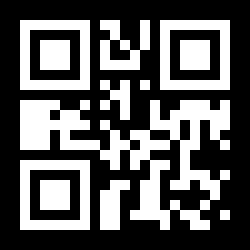
How Do Small Businesses Use QR Codes?
A small-business QR code is a scannable square you print on a window sign, a counter card, a business card, or a flyer that opens a web page you choose - most often your Google review link, a simple menu or price list, your social profiles, or a single page with all of your links. A customer standing at your storefront points their phone camera at the code and lands on exactly what you want them to see, with no app to install.
This page is the quick-start for a small local shop. If you want the in-depth playbook - payments, digital business cards, feedback forms, and more use cases - the QR codes for business guide goes deeper. For most small storefronts, though, one well-placed code is enough: with an editable dynamic code you can change where the sign points - from today's special to a new review link - without reprinting, and you can see how many people scanned it.
How to Make a QR Code for My Business
Making a QR code for your small business takes about a minute - no design skills and no app required:
- Decide where the scan should go. Your Google review link, a menu or price list, your Instagram or Facebook, or a single page with all your links - whatever you most want a customer at the counter to reach.
- Paste that link into the generator. Use the free generator on the EZQR home page for a static code - free forever, no watermark - or create an editable dynamic code when you want to reuse the same window sign for a new offer.
- Add your logo and brand colors (optional). The custom QR code generator drops your logo in the middle and matches your colors, so the code looks like part of your shop instead of a generic square.
- Download a print-ready file and place it. Grab a vector SVG so the code stays sharp from a small counter card up to a large window decal, then print it with a caption like "Scan to leave a review" or "Scan for our menu."
- Update it whenever your offers change. With a dynamic code, log in and change the destination - the same window sign now points to a new special or link, and your scan analytics keep counting.
Where Small Businesses Put QR Codes
Window & Storefront Signs
A code in the window lets passers-by scan your hours, menu, or a special offer even when you're closed - your storefront working after hours.
Counter & Checkout
A small counter card opens your Google review link or loyalty sign-up while a happy customer is right in front of you.
Google Reviews
Point a code at your Google review link so a one-tap scan turns satisfied customers into the reviews that win the next ones.
Menu, Price, or Service List
Link a PDF menu or price list so customers browse on their phone - update it without reprinting a single card.
Business Cards
A vCard QR code on your card saves your contact and links to a customer's phone in one tap.
One QR Code for All Your Links (Link-in-Bio)
If you can't decide between reviews, your menu, and your socials, you don't have to. Point one code at a single page with all your links - a link-in-bio for your storefront - so a customer scans once and picks where to go. It's the simplest way for a small shop to put everything behind one sign.
- One code, every link: reviews, menu, booking, shop, and socials all live on one page, so you print one code instead of a wall of them.
- Change it anytime: add a seasonal link or reorder what matters most, and the same printed code keeps working - no reprinting.
- Start free, scale up: static QR codes are free forever, so a new shop can begin at no cost and move to an editable dynamic code once it wants to reuse the code and track scans.
What Small Businesses Can Track
Editable dynamic codes turn a printed sign into something you can measure. Per-code scan analytics show:
- Scans per sign: which window, counter, or flyer placements actually get used.
- When they happen: lunch rush, weekends, a promotion week - so you learn when customers engage.
- Rough location: city and region of scanners, useful for gauging your local reach.
- Device split: iPhone vs. Android, so you can confirm your pages work on every phone.
- Campaign performance: a separate code per sign or offer tells you which one pulls the most scans.
QR Code Best Practices for Small Businesses
On the Sign
- Caption it: "Scan to leave a review" or "Scan for our menu" gets far more scans than a bare code.
- Keep it big enough: a window code read from the sidewalk should be at least 3-5 cm wide; a counter card at least 2-3 cm.
- High contrast: dark modules on a light background scan best, even through glass or under shop lighting.
- Quiet zone: leave a clear margin around the code so a phone camera locks on quickly.
Destinations That Convert
- Mobile-first pages: customers scan on their phones - reviews, menus, and social pages all need to work on a small screen.
- One clear action: a single "leave a review" or "see the menu" button beats a page full of options.
- Keep it current: repoint a code the moment an offer ends, so no one lands on a stale special.
Across the Shop
- Separate codes per placement: one per window, counter, and flyer so analytics attribute scans correctly.
- Bulk generation: create codes in bulk for a set of table or shelf cards instead of one at a time.
- Test before printing: scan a proof on both an iPhone and an Android at the real size before a print run.
Why Use EZQR for Your Small Business QR Codes
EZQR is a QR code generator built for local shops that print once and change their mind later - exactly how a small business's offers and links work:
- Editable destination: reuse a window or counter sign for a new offer or link without reprinting.
- Scan analytics: see how many scans each code gets, when, and roughly where, so you can tell which signs and offers work.
- Branded, custom design: add your logo and colors so the code looks like part of your shop.
- Bulk generation: create a code for every table or shelf card at once instead of one at a time.
- High-resolution export: download crisp vector and PNG files that stay sharp from a counter card to a full window decal.
- Team access: give a manager or the person who does your marketing their own login - an editor can update codes, a viewer can only see the scan numbers - with no extra charge per person.
- Free static codes: static QR codes are free forever with no watermark and no expiry; upgrade to a plan when you need editable destinations and scan tracking.