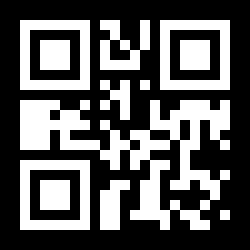
How to Create a QR Code for a Location
To create a QR code for a location on EZQR, choose whether to point to exact coordinates or an address, fill in the spot, and download the generated code as PNG, JPG, or SVG. With coordinates you drop an exact pin; with an address you type a street address or place name and the scanner's maps app searches for it. Either way, the location is encoded directly into the QR pattern, so the code needs no service behind it and never expires.
It is a location QR code generator online, free - a static location code needs no account and carries no watermark - so a free QR code generator for location pins is exactly what this page is.
Whether you'd say make, generate, or create a QR code for a location, it's the same three steps - and it's free. There's no plan to pick and nothing to sign up for, because a location QR code is static: the spot lives in the pattern itself.
GPS & Map QR Code Generator
EZQR's location QR code generator is also a GPS QR code generator and a map QR code generator: enter a latitude and longitude and it encodes those GPS coordinates directly into the code, so a scan opens the exact pin in Google Maps or Apple Maps. To convert a location to a QR code, you don't need the raw numbers - you can also turn an address into a QR code by typing the address or place name and letting the maps app find it. Either way you're converting a map location into a scannable code in a couple of seconds, with nothing to install and no account. To generate a QR code for a map location, then, is the same three steps as any location: this is a location map QR code generator, a QR code generator for map location pins, and a QR code for directions all at once, since the scan lands on a pin with a route button.
It's a free location QR code generator end to end - the finished code is a static QR, so there's no scan limit, no expiry, and nothing to pay. If you'd rather point people at your Google Maps business listing (with your hours, photos, and reviews) than a bare pin, use the Google Maps QR code generator instead.
Turn an Address Into a QR Code
You don't need coordinates to do this. Switch Point to to Address or place name and type the address the way you'd write it on an envelope - 123 Main St, Toronto, ON - or just name the place, like CN Tower. That's the whole job: the address is encoded into the pattern, and a scan hands it to whichever maps app the person already uses.
Some people call this a barcode for a location or a location barcode, and that's a fair description - a QR code is a two-dimensional barcode. The difference from the striped barcode on a cereal box is capacity: a QR code holds a full street address or a latitude/longitude pair, which is why it can drop a map pin and a retail barcode can't.
Location Scanner Maker - Same Thing, Different Name
In a lot of places - India especially - the printed QR code itself is just called a scanner: the code on a shop counter is "the scanner", and a code that opens a map pin is a location scanner. If that's the word you use, this page is a location scanner maker: enter the address or coordinates, download the code, and anyone can scan for the location with their phone camera and get directions. Same tool, same free download.
Coordinates or Address - Which Should I Use?
Pick Address or place name for anywhere with a normal address or a well-known landmark - it's the quickest option and the one most people will reach for. Pick Coordinates when you need an exact pin that an address can't give you: a trailhead, a festival gate, a specific lot, or a photo spot on a large property.
How to Find Your Coordinates
If you're using coordinates rather than an address, here's the quickest way to grab them:
- Open Google Maps and find the exact spot you want to mark.
- Right-click the spot on desktop, or long-press it on your phone.
- Copy the coordinates shown at the top of the menu - latitude first, then longitude.
- Paste them into the fields above - latitude in the first box, longitude in the second.
Making a QR code for your current location
To turn your current location into a QR code, you need the coordinates of where you're standing. On a phone, open Google Maps and tap the blue dot, or long-press it, and the latitude and longitude appear at the bottom of the screen - copy them into the generator above. On desktop, right-click your position on the map and copy the coordinates from the top of the menu.
Worth knowing: the resulting code is a fixed pin, not a live one. It encodes the coordinates you pasted in, so it always points at that exact spot - which is what you want for a meeting point, a site entrance, a trailhead, or a stall. It won't follow you if you move. Coordinates are also the better choice than an address here, since the place you're standing may not have a street address at all.
Ways to Use a Location QR Code
Event Invitations
Drop the pin exactly at the entrance so guests navigate straight there.
Weddings & Venues
Point to the ceremony spot on a large property, not just the front gate.
Trails & Parks
Mark a trailhead or lookout that has no street address of its own.
Real Estate & Land
Send buyers to a specific lot or parcel, precisely where you mean.
Festivals & Markets
Guide attendees to a gate, stage, or stall in a big open space.
Deliveries & Sites
Give drivers the exact drop-off point on a large or unaddressed site.
Frequently Asked Questions
What is a location QR code?
A location QR code stores GPS coordinates (latitude and longitude). When someone scans it, their phone offers to open the spot in their maps app, ready for directions. It is an exact way to point people to a place - no address ambiguity.
How do I make a QR code for a location?
Choose whether to point to exact coordinates or an address. For coordinates, enter the latitude and longitude; for an address, just type the street address or place name. The QR code updates as you type. Download it as a PNG, JPG, or SVG and add it to an invitation, sign, or flyer so people can navigate straight there.
Can I use a street address instead of coordinates?
Yes. Switch the "Point to" option to "Address or place name" and type the address - for example "123 Main St, Toronto, ON" or a landmark like "CN Tower". When scanned, the phone opens its maps app and searches for that place. Use coordinates instead when you need an exact pin with no address, like a trailhead or a spot on a large property.
Where do I find the latitude and longitude?
In Google Maps, right-click (or long-press on mobile) the exact spot and the coordinates appear at the top of the menu - tap to copy them. Latitude comes first, then longitude. Paste each into the matching field here.
Is the location QR code generator free?
Yes. Location QR codes on EZQR are static - the coordinates are encoded directly into the pattern - so they are free forever with no watermark, no scan limit, and no expiry. No account required.
Will the location QR code work on iPhone and Android?
Yes. Modern iPhones and Android phones read geo QR codes with the built-in camera and offer to open the coordinates in Apple Maps or Google Maps. No separate app is needed.
Why use coordinates instead of a street address?
Coordinates point to an exact spot, which is ideal when there is no street address or when the address is imprecise - a trailhead, a festival entrance, a specific building on a large campus, or a photo spot. For a normal address, a coordinate still drops the pin exactly where you want it.
Is this a GPS QR code generator?
Yes. Enter a latitude and longitude and the tool encodes those GPS coordinates straight into the QR code, so scanning opens the exact pin in the phone’s maps app. If you don’t have the coordinates handy, type an address or place name instead - either produces a working GPS/location QR code.
How do I turn an address into a QR code?
Set "Point to" to "Address or place name" and type the address exactly as you would write it on an envelope - for example "123 Main St, Toronto, ON M5V 2T6". The code updates as you type. When someone scans it, their phone opens its maps app and searches that address, so they get directions in one tap. Download the PNG, JPG, or SVG and it is yours free, with no account and no expiry.
Is this a barcode generator for a location?
Yes - a location QR code is the kind of barcode people mean when they ask for a barcode for a location or a map. QR codes are two-dimensional barcodes, and unlike the striped barcodes on retail packaging they can hold a full set of GPS coordinates or a street address. Scanning it with any phone camera offers to open that spot in the maps app.
How do I get a QR code for a location for free?
Use the generator on this page. To create a QR code for a location, type the address or place name (or paste GPS coordinates), and the code is generated as you type - then download it as PNG, JPG, or SVG. It is free: a location QR code is static, so there is no account, no watermark, and no expiry. The same tool covers whatever you would call it - a QR code generator for location, a location-to-QR-code converter, or a location scanner maker.
How do I convert a location to a QR code?
Pick how you want to specify the spot - an address/place name or exact GPS coordinates - enter it above, and the code updates instantly. Download the PNG, JPG, or SVG and you’ve converted that map location into a QR code you can print on an invitation, sign, or flyer. It’s free and needs no account.