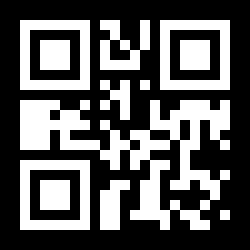
Home QR Code for LinkedIn Walkthrough
How to Make a QR Code for LinkedIn
Turn your LinkedIn profile or company page into a scannable QR code you can print on business cards, badges, and networking handouts - one scan opens your profile and the connection is a tap away.
What the video covers
- Copy your LinkedIn URL - Grab your personal profile URL (linkedin.com/in/yourname) or company page URL (linkedin.com/company/yourcompany) from the browser address bar. Tip: set a custom public URL in LinkedIn first so the code stays tidy.
- Paste it into EZQR - Paste the URL into the EZQR generator. The QR code preview appears instantly.
- Download and print - Download the code as PNG, JPG, or SVG, then print it on business cards, badges, or handouts. Use SVG so it stays crisp at any size.
- Test the scan on your phone - Scan the printed code with your phone camera to confirm it opens the right LinkedIn page - on both an iPhone and an Android.