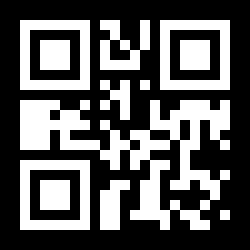
How to Make a QR Code for a Poster
To make a QR code for a poster, paste your destination link into the generator, download the SVG (vector) for large posters or a 300 DPI PNG for small ones, then place it on your poster with a clear quiet zone around it. The whole thing takes about a minute, and the code is free to download with no watermark and no expiry.
- Pick the link your poster should point to. A landing page, menu, signup form, video, or social profile - wherever you want people to land after they scan.
- Paste it into EZQR's generator. The QR code preview updates instantly as you type.
- Download SVG for big posters, PNG for small ones. The SVG is a vector file, so it stays perfectly sharp at any print size.
- Drop it into your poster design. Place the QR code where a phone can reach it and leave a blank margin (quiet zone) around it.
- Print a proof and test the scan on both an iPhone and an Android before running the full print job.
Print a QR Code on Any Size Poster
A poster gets scanned from a distance, so the code has to be big enough to read from where people stand. A reliable rule of thumb: the maximum scanning distance is roughly the printed code size divided by 10.
- Tabletop / A4 poster: 25mm (1") code, scans from ~2.5m
- A2 event poster on a wall: 40-60mm (1.5-2.5") code, scans from 4-6m
- A1 / large-format poster: 80-120mm (3-5") code, scans from 8-12m
- Storefront window or hallway banner: 150mm+ (6"+) code
For any poster larger than letter size, download the SVG. Vector files scale with no resolution limit, so the code stays crisp whether it's printed at 5cm or 50cm. A 300 DPI PNG works fine for small posters but can soften when blown up to large format.
Posters & Print Materials People Use These For
Event & Gig Posters
Point to your registration page, lineup, or ticketing provider's page so people can act the moment they see the poster.
Retail & Sale Posters
Link straight to the product, promo, or online store from an in-store poster or window display.
Restaurant & Café Posters
Wall poster or A-frame that opens your menu, specials, or order page in one tap.
Recruitment & "We're Hiring" Posters
Send applicants straight to the job listing or application form.
Contest & Prize Draw Posters
A "scan to enter the draw" poster sends entrants straight to your entry form - far better response than a paper ballot box, and no transcribing handwriting afterwards.
Campus & Community Posters
Club signups, fundraisers, and notices on a bulletin board - scan to learn more.
Product Boxes & Packaging
Put a QR code on the box for setup guides, manuals, warranty registration, or a how-to video.
QR Code for a Box or Packaging
Putting a QR code on a box works exactly like a poster: paste the link, download the file, and add it to your packaging artwork. Boxes are usually scanned up close, so a 20-25mm (about 1") code is plenty. A few tips specific to packaging:
- Use vector (SVG) for the print file so the code survives resizing across different box panels and SKUs.
- Keep high contrast - a dark code on a light, untextured panel scans most reliably. Avoid placing it over busy artwork.
- Mind folds and seams - don't let a crease or glue flap run through the code.
- Link to something useful - setup instructions, a manual PDF, a demo video, or warranty registration. If that content might change, an editable code lets you update it without reprinting the box.
Works With Any Poster Maker
You don't need a special QR code poster maker - generate the code here, download it, and import it into whatever design tool you already use. Canva, Adobe Express, PowerPoint, Photoshop, Illustrator, InDesign, Word, Google Slides, or your printer's online editor will all happily place a PNG or SVG.
- Canva / Adobe Express / Google Slides: upload the PNG and drag it onto your poster.
- Illustrator / InDesign / Affinity: place the SVG for a true vector code that prints sharp at any size.
- Word / PowerPoint: insert the PNG as an image and size it to your viewing distance.
Because the download is a plain image file, there's nothing to embed and no plugin to install - it drops into any poster maker like any other graphic.
Should I Use a Static or Editable QR Code on a Poster?
A free static QR code is perfect when the link won't change - a permanent website, a fixed product page, your social profile. It's free forever, with no watermark and no expiry.
Choose an editable (dynamic) QR code when the destination might change after the poster is printed - a rotating promotion, a seasonal menu, or a campaign you'll redirect later. You can update where it points without reprinting a single poster, and you'll see scan analytics for the campaign. Already printed and need the link to change? See how to change a QR code after printing.