Home QR Code for Google Docs Walkthrough
How to Make a QR Code for Google Docs
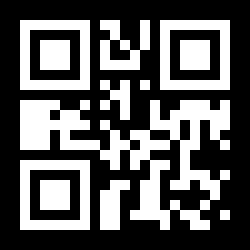
Set your Google Doc to Anyone with the link, copy the share URL, and turn it into a scannable QR code with EZQR so anyone can open the document on their phone - no typing, no emailed links.
What the video covers
- Open the Google Doc and click Share - A desktop browser is easiest - the green Share button is at the top right of the document.
- Set General access to Anyone with the link - Change the dropdown from "Restricted" to "Anyone with the link" and set the role to Viewer so scanners can read the doc but not edit it. This is the step that makes or breaks the QR code.
- Click Copy link - You will get a URL that looks like docs.google.com/document/d/.../edit.
- Paste the link into EZQR - Your QR code appears instantly. Download it as PNG, JPG, or SVG - SVG scales cleanly for large-format printing.
- Scan-test before printing - If the scan lands on "Request access," go back and fix the sharing setting - the doc is not public yet. You do not need to regenerate the code.